

How to Add an IP Camera to Protegus 2
How to add an IP camera live stream to the Protegus 2 app via RTSP link.
- 1 min read
- 01.03.2022
- Manufacturer: Trikdis
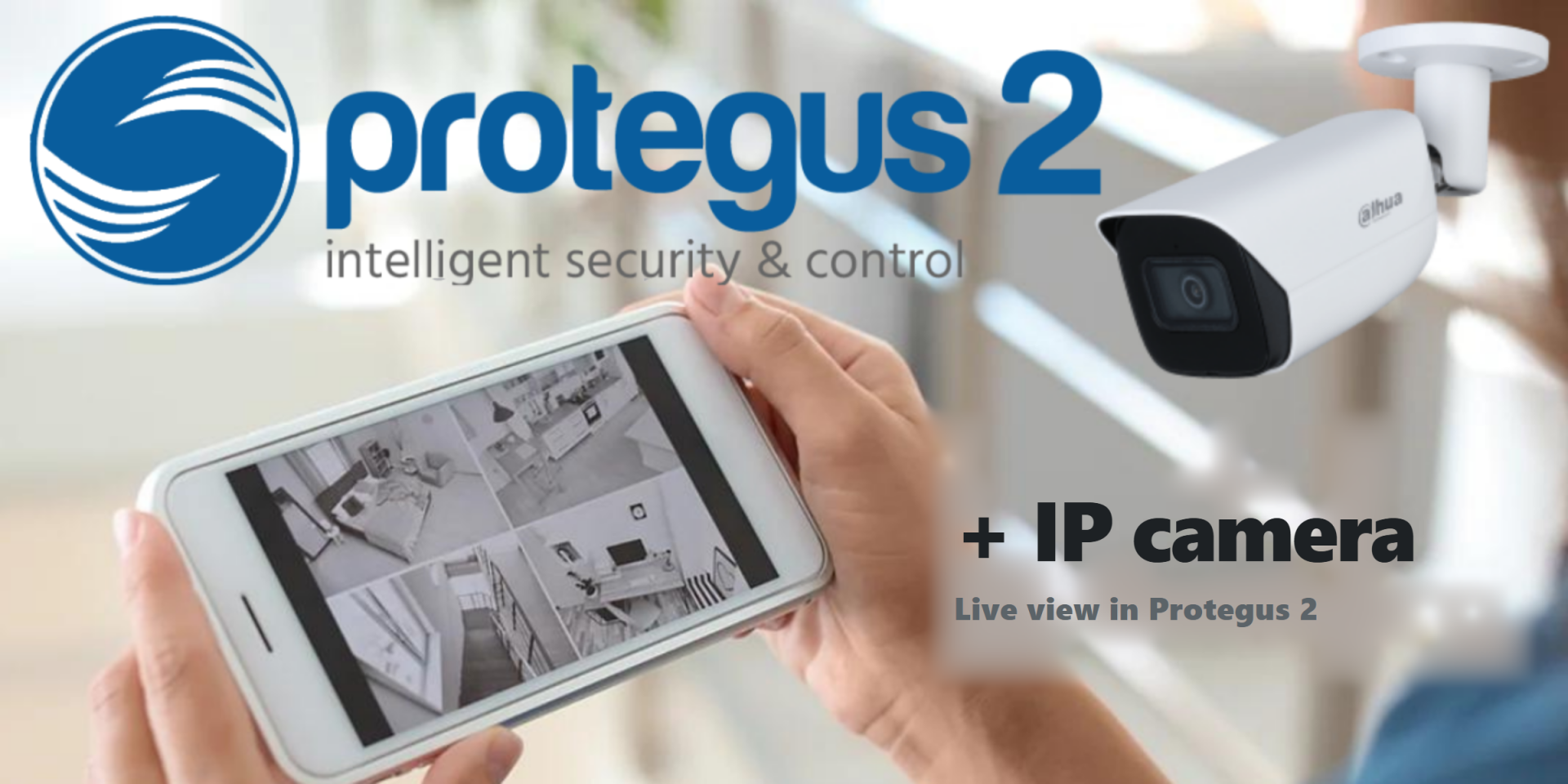
If you use Protegus 2 and have an IP camera with a live stream, you can add a shortcut button to the home screen to open the live stream.

It is necessary to have an IP camera with an external IP and an open port. Otherwise, it will not work.
- Log in to Protegus 2 if necessary.
- Open the side menu, select Cameras
- Click plus to add a camera
- Enters the name that will appear on the system home screen (optional)
- Fill the rest of the fields:
IP address
Port
User name (camera)
Password (camera)
Live stream path
The maximum number of cameras that can be added is 8
All data is accessible via the camera admin panel. Instead of adding the data one by one, you can paste the full RTSP link and the fields will fill up automatically. To do that just copy the full link and paste it to any field.
The RTSP link has to follow the structure below:

For testing you can try the camera at the Trikdis office:
rtsp://admin:admin@195.14.187.141:1554/live
Short video tutorial: How to add an IP camera stream to Protegus 2
Related Articles

Protegus 2 Browser Interface Renewed
- 30.11.2023
The renewed Protegus 2 browser interface and the new layout explained.
Read MoreRelated Products
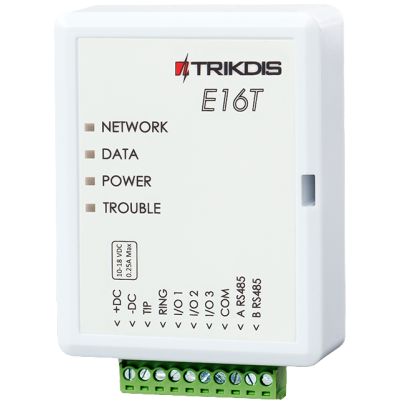
Trikdis E16T Ethernet universal communicator - IP module
Ethernet communicator with TIP-RING connection: works with any landline-type alarm panel, with monit..
€86.90 Ex Tax: €70.65
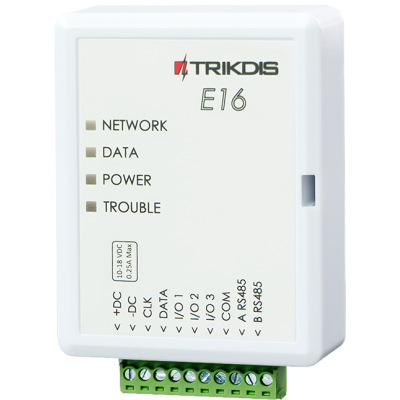
Trikdis E16 Ethernet Communicator - IP module
Ethernet smart communicator: forwards alarm events over the internet to the monitoring station, with..
€82.90 Ex Tax: €67.40

Trikdis SP231 GSM / IP smart control panel
GSM/IP smart alarm panel with built-in communicator: full remote control from the Protegus 2 app, in..
Discontinued
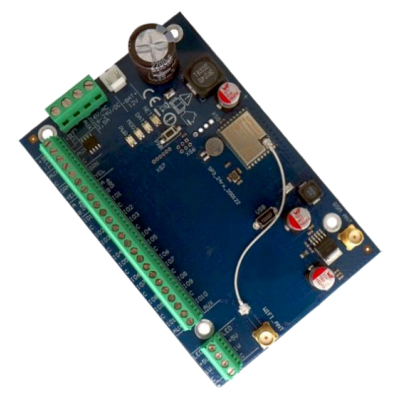
Trikdis FLEXi SP3 WiFi smart alarm system control panel
Versatile smart alarm panel with built-in WiFi communicator: the base of wired, hybrid or wireless s..
€139.90 Ex Tax: €113.74
Trikdis FLEXi SP3 Ethernet smart alarm system control panel
Smart alarm panel with built-in Ethernet communicator: wired internet communication, remote access, ..
€139.90 Ex Tax: €113.74
Frequently asked questions
Hopefully not. Basically, the phone should be protected from any access by using a password or pattern or fingerprint. In addition, you can use password request when you start the Protegus application and also when you want remotely control something.
Yes: Protegus 2 can be tried on a live demo system, without installation or purchase — from a browser and from the mobile app too. This lets you see in advance what arming, notifications, and system status look like on a working alarm system.
Protegus 2 typically retains the event list for up to two months; with a large volume of events, this period may shorten to as little as one month.
This is how the iPhone works: while an app is open, it does not receive notifications, neither sound nor vibration.
For Protegus 2 to alert you with sound and vibration, the app has to be closed. It can stay among the recently used apps, that is not a problem. But if it is fully open and you are looking at it, no notification arrives, and you only see the event in the app.
This applies to every device: the iPhone or iPad on which Protegus 2 is currently open will not alert, the others will.
Log out of your Protegus 2 account, then log back in. The app then sets the notification values again, and in most cases this solves the problem.
In addition:
- Always keep the app updated to the latest version.
- In the app's Notifications menu, switch on the “Play notifications in DND mode” slider. This way the notification plays a sound even when the phone is in Do Not Disturb (DND) mode.
On an iPhone, an open app does not receive notifications, see: Why does Protegus 2 not play a sound or vibrate on an iPhone while the app is open?