

Remote arming with a keyswitch from the Protegus 2 app
This article is a general guide to setting up the Trikdis device and the alarm control panel so that the system can be armed and disarmed from the Protegus 2 app through a keyswitch.
- 7 min read
- 30.10.2026

Attention!
Electricity can be dangerous and may cause personal injury or DEATH, as well as other financial loss or damage if not used or installed properly.
Installation involves working with electrical equipment, and it should be executed in accordance with current regulations!
Warranty validation requires the device to be installed by a qualified person following the installation regulations for electrical equipment and adhering to the current regulations for the safe operation of electrical equipment.
Before you start
The article assumes that the control panel's events already arrive in the Protegus 2 app. If this is not working yet, set it up first; this article does not cover it.
Arming and disarming can take place even without events, but the complete service will not work properly: Protegus 2 receives no feedback about the actual state of the control panel. In that case the operation may remain pending on the partition screen, and the hourglass keeps spinning.
The control panel usually has to be programmed. For the keyswitch to work, the zone must be configured in the panel. This can only be skipped if the panel was previously controlled by a device working on the same principle and you are merely replacing it.
How does it work?
Trikdis devices have one or more outputs, or programmable I/O terminals that can be configured as outputs. One such output arms and disarms one partition of the control panel: it operates the zone that is configured in the panel as a keyswitch.
If you want to control several partitions independently, you need a separate output on the Trikdis device for each partition, and the same number of free zone inputs on the control panel that can be programmed as keyswitch zones.
The solution has three parts:
- receiving the events — the article takes this as given;
- wiring the keyswitch and programming the control panel;
- configuring the control output of the Trikdis device in TrikdisConfig, then setting up the control in Protegus 2.
Which Trikdis device?
| Trikdis device | Terminals usable for control | Partitions, at most |
|---|---|---|
| GT, GT+, GET | 2 programmable I/O | 2 |
| E16, E16T, G16, G16T | 3 programmable I/O | 3 |
If you need more outputs, the iO-8 expander module adds another eight programmable inputs or outputs.
Wiring
Warining!
It is forbidden to perform wiring on a device under voltage. Before starting the work, disconnect power (including backup batteries).The drawing and the list show only the points involved in the keyswitch control, not the wiring of the whole system. For the purposes of this article, the power supply and the event reporting are already in place.
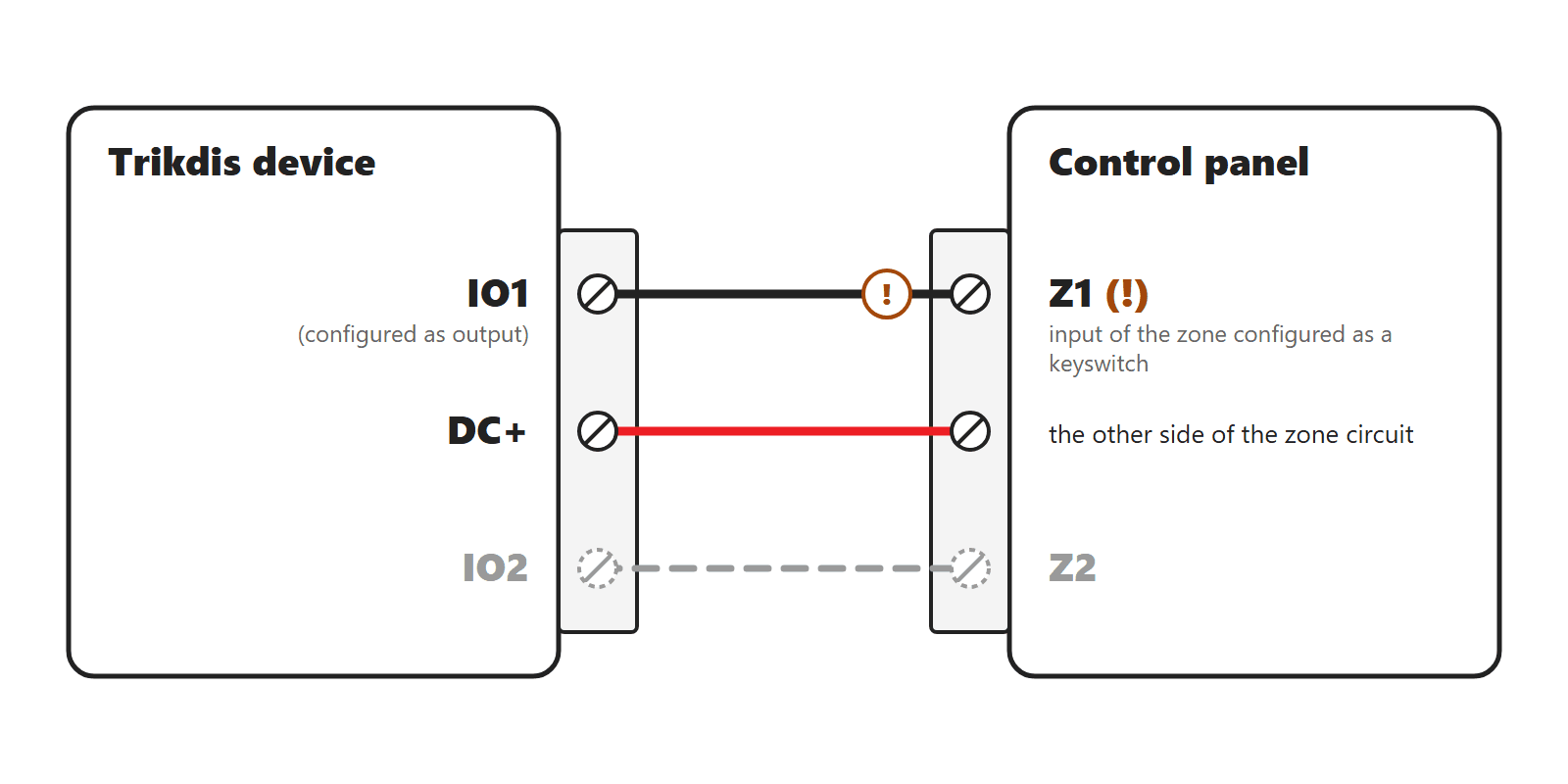
| Trikdis device | Control panel |
|---|---|
| IO1 (configured as output) | input of the zone configured as a keyswitch, for example Z1 (!) |
| DC+ | the other side of the zone circuit |
(!) Depending on the type and settings of the control panel, an end-of-line resistor may have to be wired in at this point (see below).
In the example we use the DC+ and IO1 terminals of the Trikdis device. The output switches towards DC+. For a second partition, IO2 and the second keyswitch zone follow in the same way.
No separate relay is needed between the Trikdis device and the control panel for proper operation, because the communicator is powered by the control panel. The control can also be implemented with a separate relay.
Zone configuration: NC, NO or EOL
The keyswitch zone must be wired the way the control panel expects it on that zone. This depends on the panel's settings:
- NO (normally open): no resistor is needed. This is the most common.
- EOL (end-of-line resistor): the resistor specified in the panel's manual must also be wired in. This is common too.
- NC (normally closed): less common; the wiring is given in the panel's manual.
It is worth clarifying this before wiring, because with the wrong termination the zone reports a fault or tamper, and the keyswitch does not work.
Programming the control panel
The exact programming steps differ by brand and model, so this is a general guide; the section numbers are in the panel's manual. This part does not cover the setup of the telephone (TIP/RING) and other communication links either, only the steps needed for keyswitch control.
- Zone type: the zone used as a keyswitch (for example Z1) must be programmed as a keyswitch zone type. There are two modes of operation: pulse and level (two-state). We usually recommend pulse, but level can be used too. Later, the same mode must be selected in Protegus 2.
- Partition: the zone must be assigned to the partition you want to control. On single-partition systems this is often fine by default, without any extra setting. If the control does not work, be sure to check the partition assignment.
- Zone termination: this also depends on the panel. If the panel lets you set the termination type per zone, NO is the simplest, especially when the Trikdis device sits right next to the panel: with such a short connection a wiring fault is also easy to find. If the panel only lets you set the termination for all zones together, or it cannot be changed at all, the wiring must be adapted to the termination required by the panel, with resistors if necessary.
- The zone configuration (NC, NO or EOL) must match the wiring.
- The panel must report arming and disarming, because Protegus 2 displays the partition state from these events.
On some panels the reporting of arming and disarming events may be switched off by default. One example is the DSC NEO: there, reporting of remote arming and disarming events has to be enabled separately.
Setting up the Trikdis device (TrikdisConfig)
- Open TrikdisConfig and read the device's settings.
- On the page where the function of the inputs and outputs is defined, set the terminal used for control to OUT. Leave the other terminals on Disabled.
- Write the changes to the device.
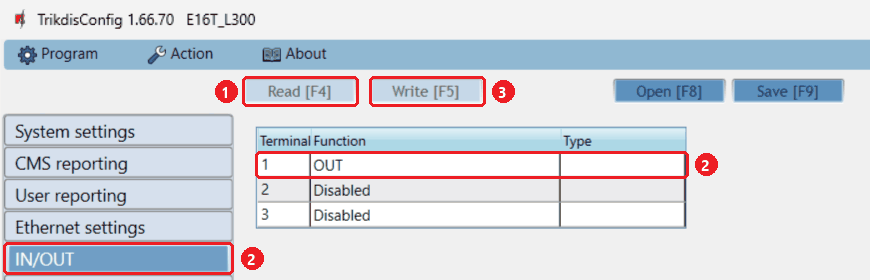
The remaining control settings are made in the Protegus 2 app.
Setup in Protegus 2
This part assumes that the system already exists in Protegus 2, the events arrive correctly, and the partitions are displayed.
- Select the partition you want to control.
- Turn on Control with Protegus2, select the corresponding output under Assigned Output, then choose the mode of operation: Pulse or Level. This must match the type configured for the keyswitch zone in the control panel. Pulse is typically used.
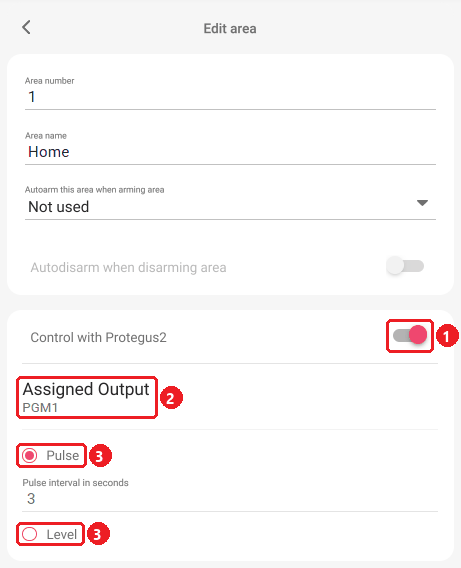
With several partitions, do this separately for every partition you want to control, selecting its own output for each.
What does the user see?
In Protegus 2 you arm and disarm with the padlocks on the partition screen. With several partitions each has its own padlock, so they can be operated independently.
- Closed red padlock: the partition is armed.
- Open green padlock: the partition is disarmed.
The padlock takes on the appearance matching the actual state when the event arrives from the control panel.
Time may pass between issuing the command and receiving the feedback. The Trikdis device operates the keyswitch, then the control panel may, for example, run through its exit delay. If the feedback arrives over a TIP/RING connection, that can take a further 10–20 seconds. Wait until the event arrives and the app updates the partition state.
Help with setup and troubleshooting
The Trikdis device and the control panel can be tested independently of each other, so the fault can be found quickly.
- The Trikdis output: connect a test relay between IO1 and DC+, and switch the output on from Protegus 2. If the relay pulls in, the Trikdis device is switching. Instead of a relay you can also measure with a multimeter.
- The control panel: disconnect the Trikdis device and briefly short the two terminals of the zone configured as a keyswitch with a piece of wire: typically the zone input and COM. This lets you check whether the panel responds to the control correctly.
If the relay pulls in but the panel does not arm even on the short, the panel programming needs to be fixed. If the panel arms on the short but not on the Trikdis output, check the wiring or the TrikdisConfig setting. If the panel arms but the padlock does not change, look at the event log: did the arming event arrive, and with which partition?
Exception: DSC Alexor
The DSC Alexor sends its events with partition number 0, so Protegus 2 cannot handle the partition state in the usual way. With a custom solution, keyswitch control can be implemented here too, but the padlock partition screen will not work properly.