

TrikdisConfig – installation and first launch
TrikdisConfig is the common Windows configuration software for all Trikdis devices. This article takes you from download to first launch: installation, USB connection, program language and updates.
- 3 min read
- 12.11.2026
What is TrikdisConfig for?
All Trikdis devices – communicators, alarm control panels, gate controllers, expanders – are configured with one common program: TrikdisConfig. It runs on Windows and connects to the device in two ways:
- via USB cable, on site or on your desk before installation;
- remotely, using the device's Unique ID, once the device is online.
This article covers the first steps. Connecting, passwords and remote access are explained in detail in the next article of the series.
1. Download
Download the program from the manufacturer's website: on the trikdis.com home page, click the Download button on the TrikdisConfig card.
2. Installation
Run the downloaded installer and follow its steps. The program is installed in the C:\Program Files (x86)\Trikdis\TrikdisConfig folder and can be started from the Desktop or the Start menu.
On Windows 10 and 11 no separate USB driver is needed: the system recognises the device automatically. For older Windows versions (XP, 7, 8) the driver is in the program folder, under Drivers.
3. Connecting the device via USB
Connect the device to the computer with a USB cable. The connector type differs from device to device; the commissioning chapter of the device's manual tells you which one you need (for example, the E16T uses USB Mini-B).
Warning
While the device is connected to a computer via USB cable, it is in programming mode: its normal operation stops, it does not monitor, does not report, cannot be controlled, is powered from USB, and restarts once the cable is unplugged. Therefore the device must not be freely accessible: keep it in a closed metal enclosure with tamper protection or with a motion detector covering the enclosure. More in the FAQ
Start TrikdisConfig. The program recognises the device and opens the configuration window. If it asks for a password, enter the 6-digit administrator code (factory default 123456) or installer code (factory default 654321).
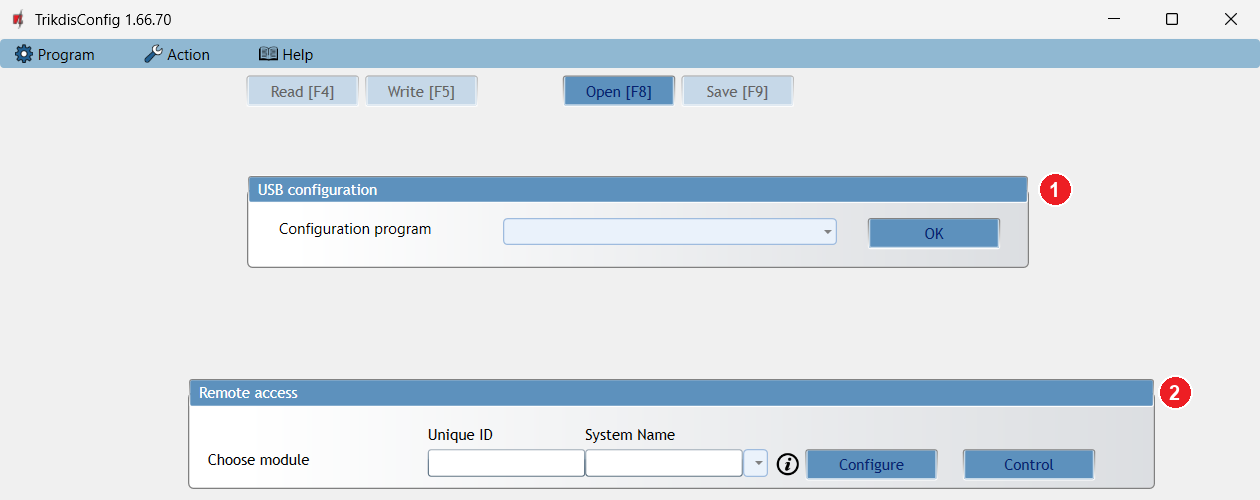
If no device is connected, the main window offers two options:
- USB configuration – you select the device type, prepare the settings without a device and save them to a file;
- Remote access – you log in remotely using the device's Unique ID.
4. Program language
You choose the language in the Program → Language menu. The menus, buttons and status bar are described here: The TrikdisConfig user interface.
5. Program updates
When it starts, TrikdisConfig checks whether a newer version is available. If there is one, the Update available window shows the new version number and what's new, and asks: Do you want to download it? Click Yes and install the update: new devices and firmware versions can only be handled with the latest program.
It may also offer a firmware update. If newer firmware has been released for the device connected via USB, the program tells you the same way (New firmware version is available). The firmware update procedure and its rules are covered in a separate article of the series.
Only tick the Do not ask for this version again checkbox if you deliberately want to stay on the old version.
Next step
The program is running and the device is connected: the next article covers the connection methods, access levels and passwords.