
How to Add an IP Camera to Protegus 2
How to add an IP camera live stream to the Protegus 2 app via RTSP link.
- 2 min read
- 01.03.2022
- Manufacturer: Trikdis

If you use Protegus 2 and have an IP camera with a live stream, you can add a shortcut button to the home screen to open the live stream.

It is necessary to have an IP camera with an external IP and an open port. Otherwise, it will not work.
- Log in to Protegus 2 if necessary.
- Open the side menu, select Cameras
- Click plus to add a camera
- Enters the name that will appear on the system home screen (optional)
- Fill the rest of the fields:
IP address
Port
User name (camera)
Password (camera)
Live stream path
The maximum number of cameras that can be added is 8
All data is accessible via the camera admin panel. Instead of adding the data one by one, you can paste the full RTSP link and the fields will fill up automatically. To do that just copy the full link and paste it to any field.
The RTSP link has to follow the structure below:

For testing you can try the camera at the Trikdis office:
rtsp://admin:admin@195.14.187.141:1554/live
Short video tutorial: How to add an IP camera stream to Protegus 2
Tags:
Related Articles

Protegus 2 Browser Interface Renewed
- 30.11.2023
The renewed Protegus 2 browser interface and the new layout explained.
Read MoreRelated Products
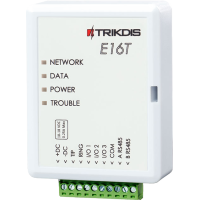
Trikdis E16T Ethernet universal communicator - IP module
Ethernet communicator with TIP-RING connection: works with any landline-type alarm panel, with monitoring station reporting and Protegus 2 app alerts.
€86.90 Ex Tax: €70.65
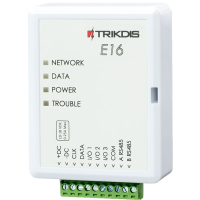
Trikdis E16 Ethernet Communicator - IP module
Ethernet smart communicator: forwards alarm events over the internet to the monitoring station, with remote arming from the mobile app. Direct Paradox/DSC bus connection.
€82.90 Ex Tax: €67.40
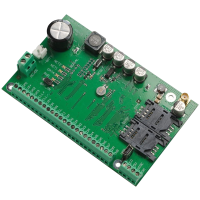
Trikdis SP231 GSM / IP smart control panel
GSM/IP smart alarm panel with built-in communicator: full remote control from the Protegus 2 app, including devices around the house.
Discontinued
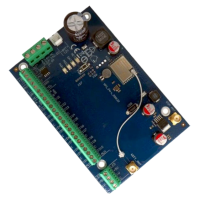
Trikdis FLEXi SP3 WiFi smart alarm system control panel
Versatile smart alarm panel with built-in WiFi communicator: the base of wired, hybrid or wireless systems, with a free app.
€139.90 Ex Tax: €113.74
Trikdis FLEXi SP3 Ethernet smart alarm system control panel
Smart alarm panel with built-in Ethernet communicator: wired internet communication, remote access, free app.
€139.90 Ex Tax: €113.74