

TRIKDIS Communicator + PARADOX Alarm Control Panel – Brief Installation Guide
Brief installation guide for connecting a PARADOX alarm control panel with a TRIKDIS communicator and setting up the Protegus 2 application.
- 9 min read
- 26.02.2024
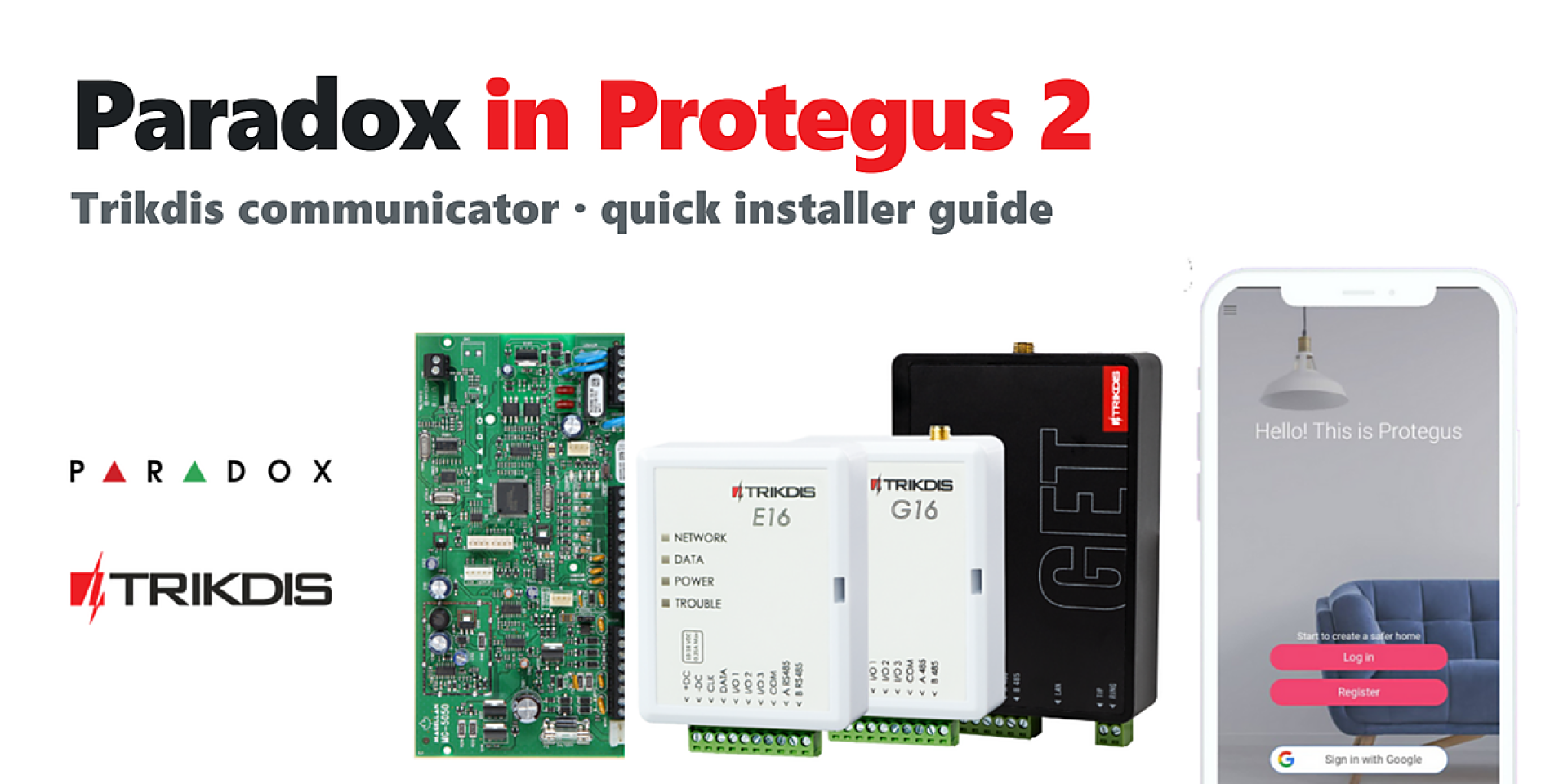
The following installation guide assists in installing TRIKDIS E16, G16, GT, GT+, GET smart communicators. The guide outlines step-by-step operations to be performed for compatible PARADOX alarm control panels.
The guide primarily helps with creating the alarm control panel in the free Protegus 2 user application. As a result, alarm system events become visible in the app, and in many cases the alarm can also be controlled (armed/disarmed).
Attention!
Electricity can be dangerous and may cause personal injury or DEATH, as well as other financial loss or damage if not used or installed properly.
Installation involves working with electrical equipment, and it should be executed in accordance with current regulations!
Warranty validation requires the device to be installed by a qualified person following the installation regulations for electrical equipment and adhering to the current regulations for the safe operation of electrical equipment.
Which PARADOX alarm control panel can this guide be used for?
The description only applies to PARADOX alarm control panels listed in the table below.
Alarm control panels connectable via data bus or serial port – GT, GT+, GET
Die Trikdis GT, GT+, GET are compatible with all the alarm control panels listed below . The main advantage of these specialized Trikdis communicators is that events are transmitted via the data bus or serial port.

Magellan MG5000, MG5050, MG5050+*, MG5050E, MG5075
DIGIPLEX EVO192*, EVOHD*, EVOHD+ (*Fw. above 7.50)
For direct control, the firmware of PARADOX panels must be at least version V.4.
* The serial port on the new marked alarm panels is locked at the factory. The port must be enabled before communication with an external device is possible.



Premier Elite 12, 24, 48, 64, 88, 168, 640

ESPRIT E55
DIGIPLEX EVO48

Alarm control panels connectable via data bus or serial port – E16, G16
Die Trikdis E16, G16 are compatible with all the alarm control panels listed below . The main advantage of these specialized Trikdis communicators is that events are transmitted via the data bus or serial port.
Magellan MG5000, MG5050, MG5050+*, MG5075
DIGIPLEX EVO192*, EVOHD*, EVOHD+ (*Fw. above 7.50)
For direct control, the firmware of PARADOX panels must be at least version V.4.
* The serial port on the new marked alarm panels is locked at the factory. The port must be enabled before communication with an external device is possible.
Premier Elite 12, 24, 48, 64, 88, 168, 640
Magellan MG5050E
ESPRIT E55, 728ULT, 738ULT
DIGIPLEX EVO48


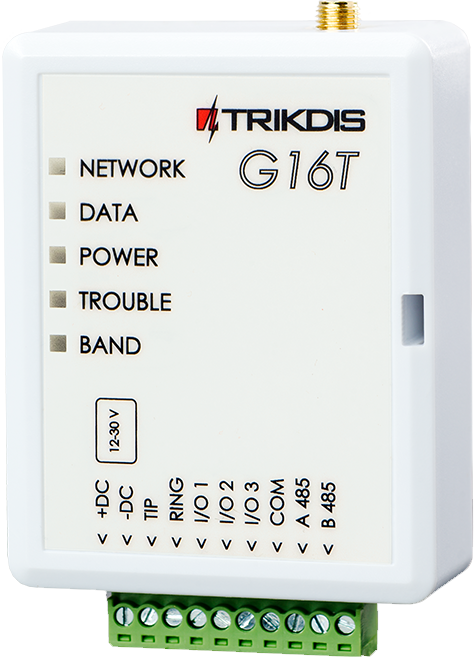


The guide consists of the following chapters:
- Wiring between the PARADOX alarm control panel and the communicator
- Programming the TRIKDIS communicator
- Starting the TRIKDIS communicator
- Creating the system in the Protegus 2 application
Wiring between the PARADOX alarm system control panel and the Trikdis communicator
Warining!
It is forbidden to perform wiring on a device under voltage. Before starting the work, disconnect power (including backup batteries).
Detachable Terminal Block
In many cases, it is very useful that the terminal block at the bottom of the device can be removed:
- It allows the device to be turned off or restarted with a single motion.
- Easier more convenient wiring.
- The Trikdis device can be brought to the computer for programming with a USB cable.
To connect the PARADOX alarm system control panel and the TRIKDIS communicator, you will need a CRP2 or CRP2B cable. The cable connection should be made as shown in the table below.
| Trikdis Communicator (Transmitter) | CRP2 Color Marking | CRP2B Color Marking | Paradox Serial Port Diagram Marking |
| +DC | Red | Yellow | AUX+ |
| -DC | Black | White | GND |
| Clk | Yellow | Red | Tx |
| Data | Green | Black | Rx |


Wiring of Paradox alarm panel serial port with CRP2 cable


Wiring of Paradox alarm panel serial port with CRP2B cable


Programming the TRIKDIS communicator
All Trikdis devices can be programmed using a common software. The software is called TrikdisConfig and can be downloaded from the manufacturer's website.
After downloading, install the program. If a new version is available each time you start TrikdisConfig, download and install the recommended update!
- Connect the computer and the TRIKDIS communicator with a mini-USB cable. (For GET, a USB-C cable is required)
- Read the device settings.
- In System Settings > General tab, select the Alarm system control panel type from the dropdown menu that corresponds to the panel connected to the TRIKDIS communicator.
- The direct control (remote arming / disarming) can only be enabled if the selected panel supports this feature (highlighted in red in the list above).
- Paradox alarm system control panels only require programming for remote control. No programming is necessary to read events. To enable direct control (remote arm/disarm) for Paradox alarm system control panels, the PC programmer password stored in the Paradox alarm panel must be entered into the TrikdisConfig System settings (PC download password) field. (This field is only displayed after direct control is enabled.)
If you enter programming mode in the Paradox alarm system control panel, you can find the password- for MAGELLAN and SPECTRA series: in section 911.
- for DIGIPLEX EVO series: in section 3012.
Attention: the 4-digit PC password must not start with a zero!
After changing the PC password, the Paradox alarm system control panel must be restarted for the setting to take effect. - In the User Reporting tab, check the enable the connection and choose a six-digit numeric connection password.
- Make the necessary settings for internet access
- Ethernet settings are only needed if the network device does not allocate an automatic IP address (e.g., router).
- For SIM card devices, the correct APN setting is required for data connection.
- It is recommended to disable the use of PIN codes on a phone before inserting the SIM card into the TRIKDIS device. If you still want to use the PIN code, be sure to enter it.

- write the settings into the device.
- After successful writing, you can unplug the USB cable from the TRIKDIS device.
Warning
While the device is connected to a computer via USB cable, it is in programming mode: its normal operation stops, it does not monitor, does not report, cannot be controlled, is powered from USB, and restarts once the cable is unplugged. Therefore the device must not be freely accessible: keep it in a closed metal enclosure with tamper protection or with a motion detector covering the enclosure. More in the FAQ


Starting the TRIKDIS communicator
- For SIM card communicators, insert the SIM card into the device before starting.
- For devices with Ethernet, you can connect the Ethernet cable before or after starting up.
- For startup, unplug the USB cable and connect the pulled jumper.
You can proceed to the next chapter when the device starts correctly and does not indicate any errors.
- The Power LED is green
- The Trouble LED does not flash red
- The Network LED is green (if it flashes yellow, it is okay)
- If the Data LED does not turn off, it means that the device cannot send some event. This indicates an internet / data connection error.
The DATA LED is the simplest internet check. The DATA LED is lit when there is a message waiting to be sent in the device's memory. A green NETWORK LED only tells you that the network connection has been established – for a mobile network device, that it has registered on the operator's network; for an Ethernet device, that the connection up to the router is alive – but not that the device can also reach the internet. If the NETWORK LED is green but the DATA LED stays lit continuously even after an event or test report, the internet connection is not working: the message cannot be sent. On a mobile network the most common culprit is the APN or the data service of the SIM card; on Ethernet, the router, the firewall or the DNS. When the DATA LED goes out, the message has been sent and the data connection is fine.
Creating the system in the Protegus 2 application
- Download the Protegus 2 application to your phone or open it in a browser
- Register an account if you haven't already.
- Log into your account.
- On the main page, click the "+" button to create a system
- Enter the unique identifier of the TRIKDIS device (you can also scan the barcode or QR code with your phone's camera), which you can find
- On the sticker of the device
- On the device's cardboard box
- In the bottom left corner of TrikdisConfig (selectable and copyable format)
- Enter the system name and select a time zone
- Your system is created, you can still name the partitions and zones at the next step, but you can do this later anytime.
- In the last step, your system's home screen will appear. Wait until the yellow stripe disappears and your system is ready.


Related Articles

Alarm Control Panel Direct Control via Data Bus or Serial Port
- 19.10.2018
Trikdis direct control via data bus or serial port: advantages, compatibility and available functions.
Read More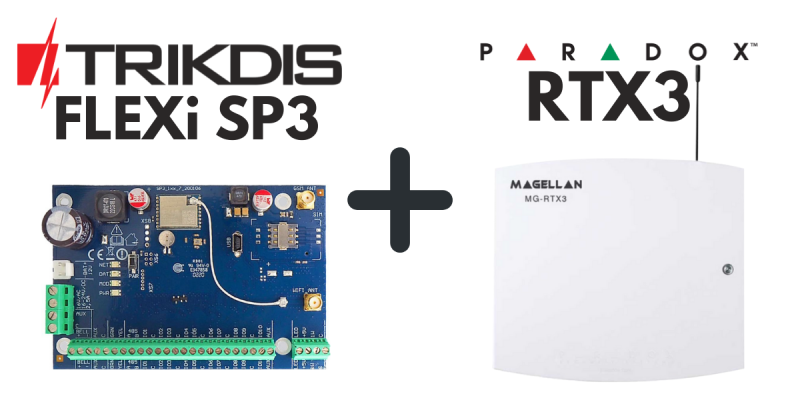
FLEXi SP3 + Paradox RTX3 Wireless Expansion Module
- 21.04.2022
FLEXi SP3 is compatible with the Paradox RTX3 wireless expansion module – easy hybrid system setup.
Read More
Serial Port Unlocking on Paradox Alarm Control Panels
- 25.01.2023
Guide to unlocking the serial port on PARADOX "+" series control panels for use with Trikdis communicators.
Read More
DSC Power Series NEO and Trikdis Communicators: Compatibility and Solutions
- 01.03.2025
Are DSC Power Series NEO systems compatible with Trikdis special communicators? Solutions and alternatives.
Read MoreRelated Products
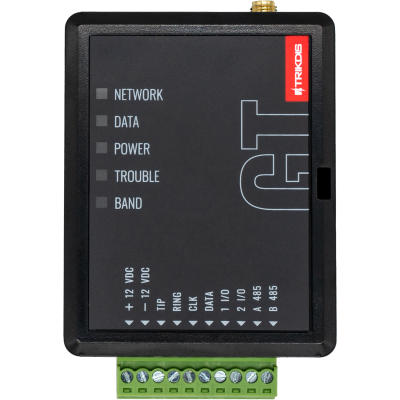
Trikdis GT 4G smart communicator
4G smart communicator combining G16 and G16T capabilities: data bus/serial port plus TIP-RING connec..
€179.90 Ex Tax: €146.26
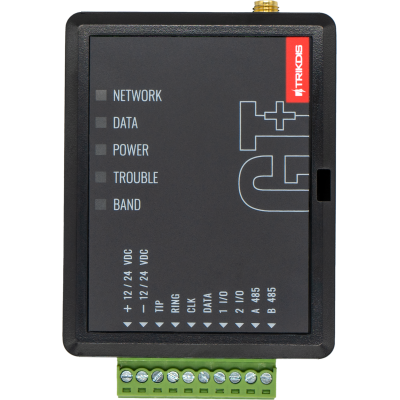
Trikdis GT+ 4G smart communicator
4G smart communicator, the extended version of the GT: data bus/serial port and TIP-RING in one devi..
€189.90 Ex Tax: €154.39
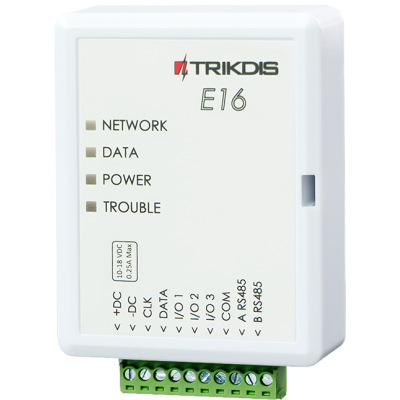
Trikdis E16 Ethernet Communicator - IP module
Ethernet smart communicator: forwards alarm events over the internet to the monitoring station, with..
€82.90 Ex Tax: €67.40
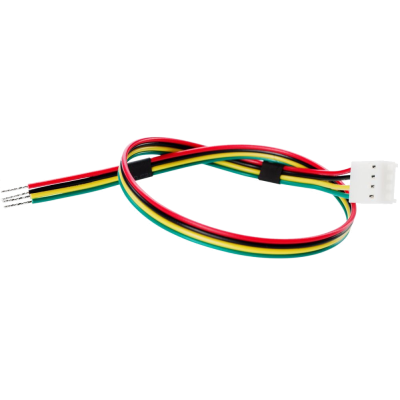
Trikdis CRP2 serial port connecting cable for Paradox alarm panels
Factory interconnect cable (~30 cm) between the serial port of Paradox panels and Trikdis communicat..
€6.49 Ex Tax: €5.28
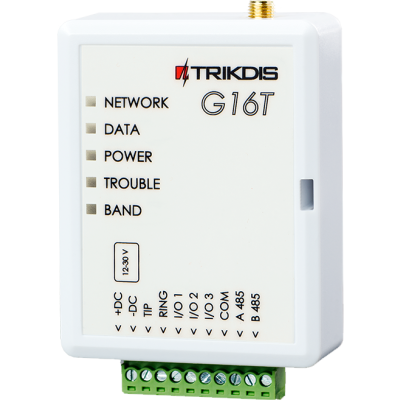
Trikdis G16T 4G GSM smart communicator (TIP-RING)
4G GSM communicator with TIP-RING connection: works with any landline-type panel, with monitoring st..
€131.32 €174.90 Ex Tax: €106.76
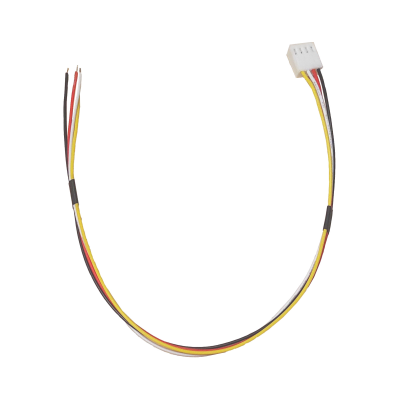
CRP2B serial port connecting cable for Paradox alarm panels
Interconnect cable (~30 cm) between the serial port of Paradox panels and Trikdis communicators — CR..
€4.49 Ex Tax: €3.65