
One application for all Trikdis devices



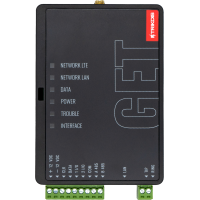
Trikdis GT+ 4G smart communicator
- Manufacturer: Trikdis
- Item code: GT+
- Availability: In Stock
- Warranty: 2 years
- Categories: Alarm Communicator > GSM Alarm Communicator

-
€174.90 Ex Tax: €142.20
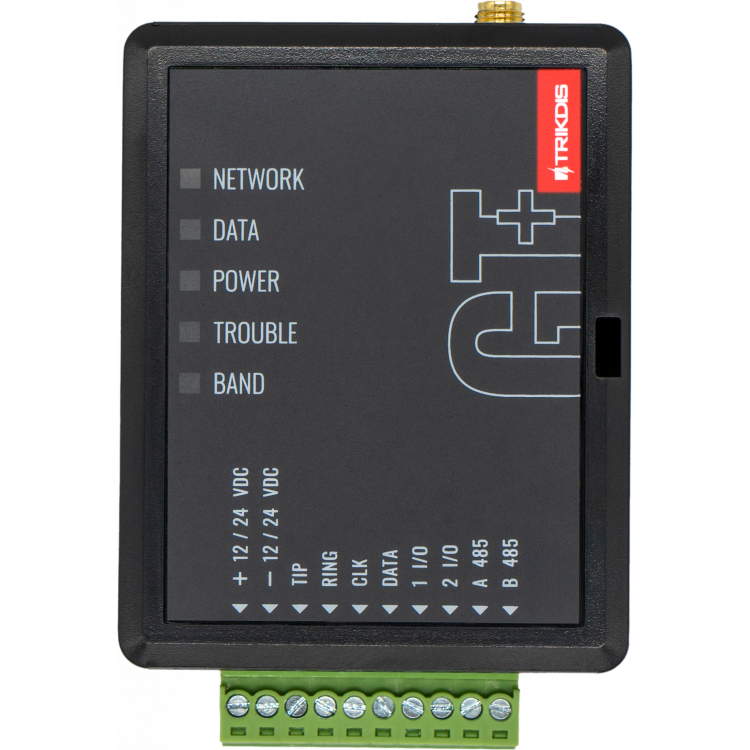
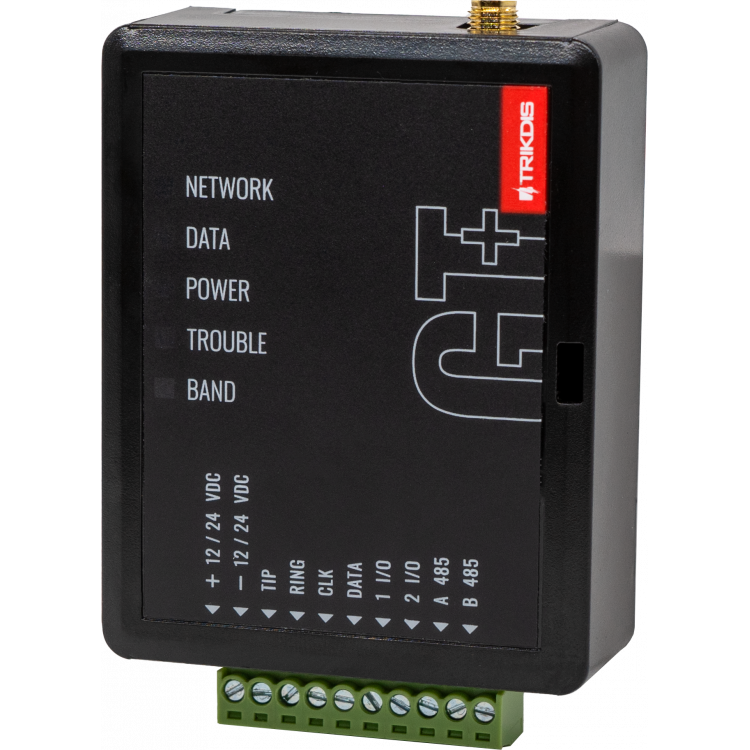
The Trikdis GT+ 4G smart communicator combines the capabilities of the G16 and G16T communicators.
It can be directly connected to Paradox, DSC, and other alarm systems via data bus (DATA BUS) or serial port (SERIAL PORT). For unsupported alarm control panels, the "T" version communicators can also be connected using the traditional TIP RING interface.
Data is transmitted over the 4G mobile network to the monitoring center and the user.
The user application, as with all smart Trikdis devices, is the Protegus 2 Mobile and Web application. With the communicator, the alarm system can be armed and disarmed remotely via the mobile application, enabling control and monitoring of additional connected devices.
Alarm control panels connectable via data bus or serial port
Die Trikdis E16, G16, GT, GT+, GET are compatible with all the alarm control panels listed below . The main advantage of these specialized Trikdis communicators is that events are transmitted via the data bus or serial port.

Magellan MG5000, MG5050, MG5050+*
DIGIPLEX EVO48, NE96, EVO96, EVO192*, EVOHD* (*Fw. above 7.50)
For direct control, the firmware of PARADOX panels must be at least version V.4.
* Die serial port on the new marked alarm panels is locked at the factory. The port must be enabled before communication with an external device is possible.



Premier Elite 12, 24, 48, 64, 88, 168

Magellan MG5050E
ESPRIT E55, 728ULT, 738ULT



Do Trikdis special communicators support the DSC Power Series NEO product family?
NO! Use the universal communicators E16T, G16T, GT, GT+, GET with telephone line (TIP RING) connection!
Read the details: DSC Power Series NEO and Trikdis Communicators: Compatibility and Solutions
Main Features:
- Power Supply: 10-32 V DC
- 4G mobile network IP module, communicator
- Can be connected directly to many popular alarm control panels via data bus or serial port; otherwise, connection via telephone line (TIP RING) is possible
- When the Protegus 2 service is enabled, events are first sent to the monitoring center before being forwarded to application users (parallel sending is also possible)
User Features:
- The owner receives notifications about alarm system events through the free Protegus 2 Mobile and Web application
- "Push" notifications and alarm sounds for event and alarm alerts
- Remote arming and disarming
Controllable Outputs:
- 2 flexible contacts that can function as inputs or programmable outputs (PGM OUT). If direct control is not supported, they can be used for controlling 2 partitions.
- RS485 port for additional compatible expansion modules and devices
- Outputs can be controlled via the Protegus 2 application
- Control of connected devices (lighting, gates, ventilation, heating, irrigation, etc.)
- Inputs and controllable outputs can be expanded using the iO8 expansion module via the RS485 port
Quick Installation
- Settings can be saved to a file, providing a starting point for configuring another device
- Fast and easy configuration and firmware updates via USB using the TrikdisConfig programming software
- Remote programming is available through the TrikdisConfig configuration software or the Protegus 2 application
- Two access levels for communicator configuration and management: Administrator, Installer
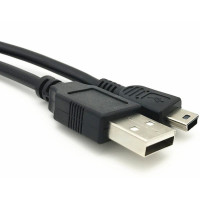
- USB-C port for programming (replacing the previously used mini USB)
Monitoring Center Connection:
- The module transmits messages to the monitoring center in Contact ID format via IP
- Compatible with universal SIA DC-09 and SUR-GUARD TL150 receivers
- Automatic switch to the secondary backup channel if the primary monitoring connection is lost
- Reporting to up to two different monitoring receivers, with a backup channel for each
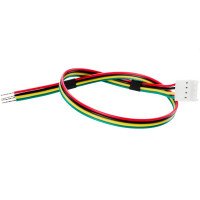
You'll Need a Cable for Connection
Connection to Data Bus or Serial Port, What Does This Mean?
In this case, the communicator is practically taught to understand the alarm panel's own language (one-way communication). Just like operators or other peripheral devices, the communicator sees events and will transmit the appropriate information according to the settings.
Direct Control
In the case of directly controllable panels, the communicator not only receives notifications from the panel but also a part of the functions available on the keypad becomes accessible (bidirectional communication).
- Activation / deactivation of the entire system or partition using a user code
- Detection of zone statuses
- Zone bypass
- Automatic mapping of partitions and zones
Communication
To Protegus cloud, to iOS/Android Protegus mobile apps
Compatible devices
Contacts (inputs and outputs)
Programming
Users
Technical data
Related Products

Related Articles
2G Network Shutdown in Europe – What You Need to Know
- 30/11/2024
10 reasons why Trikdis stands out: compatibility, data bus connection, fast installation, free Protegus app.
Read More
Dual Path – Redundant Channel Solutions from Trikdis
- 01/12/2019
Trikdis W485/E485 modules: redundant communication channel alongside GSM communicators, with lower data costs.
Read More
4G/LTE Frequency Bands Used in Europe
- 05/07/2022
A complete list of 4G/LTE frequency bands used in Europe – useful for selecting the right Trikdis GSM communicator.
Read More
Serial Port Unlocking on Paradox Alarm Control Panels
- 25/01/2023
Guide to unlocking the serial port on PARADOX "+" series control panels for use with Trikdis communicators.
Read More
TRIKDIS Communicator + PARADOX Alarm Control Panel – Brief Installation Guide
- 26/02/2024
Brief installation guide for connecting a PARADOX alarm control panel with a TRIKDIS communicator and setting up the Protegus 2 application.
Read More
Comparison Table of TRIKDIS Communicators for Alarm Systems
- 01/04/2025
Overview of TRIKDIS alarm communicators by connection type and communication method. Find the right model for your alarm system.
Read MoreTags
Frequently asked questions
Traditionally via telephone line (TIP/RING) — a universal solution that lets devices communicate regardless of brand. Trikdis's own development means that panels on the supported list (and only those) can also be connected directly and digitally via serial port or data cable — as far as we know, no one else offers this, backed by 10-15 years of development.
Protegus 2 is the 2nd generation of Trikdis's cloud app: control your alarm system from your phone and get instant notifications. We recommend it for every current internet-connected Trikdis device. The user app is free; the paid, usage- (customer-) based tier is for monitoring stations, installers and companies.
Check the product page of any direct-connection communicator — e.g. E16, G16, GT, GT+, GET: if your panel's model is on the supported list, we strongly recommend that one. In every other case, choose the telephone-line (TIP/RING) version. Pick the communication type (4G / Ethernet) based on what's available on site.
Yes, using the TrikdisConfig programming software (via USB or remotely). The latest firmware is recommended for the best compatibility and security.
Yes: Protegus 2 can be tried on a live demo system, without installation or purchase — from a browser and from the mobile app too. This lets you see in advance what arming, notifications, and system status look like on a working alarm system.
Protegus 2 typically retains the event list for up to two months; with a large volume of events, this period may shorten to as little as one month.
The AUX power output of the Paradox SP4000 alarm panel has limited load capacity. In certain cases — whether using a dedicated or a universal TRIKDIS communicator — the communicator's current draw can place too much load on the AUX output. As a result, the communicator may become unstable, restart, or fail to operate correctly.
Experience shows that the problem is usually solved by powering the TRIKDIS communicator directly from the alarm panel's battery terminals (+/-) instead of from the AUX output. This provides a stable power supply and eliminates the restart or operational issues.
Note: Before changing the wiring, always check that the system complies with the manufacturer's specifications and that the total load on the power supply does not exceed the permitted value.
The Trikdis communicator reads the codes from the panel at start-up, so it only knows the codes that existed at that moment. If codes are changed in the Paradox panel, the Trikdis device must be restarted — for example by disconnecting and reconnecting its terminal block.
After restarting, the device reads the current codes and the new code works in the app as well.
Not for Paradox devices: Paradox's own tools, e.g. Babyware, IP150, IP180, work with a locked serial port as well. Unlocking the serial port is only needed when connecting a third-party device — such as a Trikdis communicator.
Yes. On the DSC data bus the Trikdis device plays a mostly passive, listening role. If many other devices communicate on the bus — typically keypads and expander modules — the Trikdis device may not “get a word in”: it may fail to read system data and may be unable to send control commands (such as partition arming).
The issue does not occur in every installation, but above 3–4 keypads or expander modules the likelihood increases — worth considering during the site survey.
For such cases we recommend the universal version that connects to the phone-line (TIP/RING) input: the E16T or the G16T. On the GT, GT+ and GET the connection mode can be switched inside the device, so where possible we recommend these for such installations.
For decades, alarm panels reported events to the monitoring station over the fixed telephone network: the telephone dialler built into the panel “made calls” in a standard format — typically Contact ID (CID). It became such a universal standard that the TIP/RING connection is still present in almost every panel from every manufacturer, including the newest ones.
The fixed telephone line is disappearing, but the connector has found a new life: a modern communicator (such as the Trikdis E16T or G16T), wired to the TIP/RING terminals, “presents” a telephone line to the panel — providing line voltage and a dial tone. The panel believes it is calling the monitoring station; in reality the communicator answers the call, decodes the Contact ID message and forwards the event over the internet or the mobile network to the monitoring station and the Protegus 2 app.
The great advantage of this solution is brand independence: it works with practically any panel — even decades old — that has a telephone dialler, with no direct bus or serial integration. That is why we call this type of device a universal communicator.
Take the card out, put it in a phone, turn off every other internet source and open an article on a news site. If it loads, the card has working data — then note the APN and switch the PIN request off.
A regularly recurring problem: during installation you want to create the system in Protegus 2, but you get the message that the device is offline. In that case it is best to rule out the SIM card and the data connection first — it takes a few minutes with a phone.
Checking the SIM card with a phone
- Remove the SIM card from the device and insert it into a phone.
- Turn off every other source of internet connection so that the SIM card in question can be tested undisturbed: Wi-Fi, on a dual-SIM phone the other SIM card as well, or anything else — this way the traffic certainly goes through the card being examined.
- Turn on mobile data.
- Open a website in the browser, for example a news site, and open an article inside it too. If the article loads as well, the data connection on the card works. (A home page you opened earlier may come from the phone's cache — that is why an article must also be opened.)
If there is no internet connection, find out why: an incorrect or missing APN setting, no subscription on the card, an exhausted or expired data allowance, etc. Once that is sorted out and the connection really works, continue with step 5. - In the phone's settings check which APN belongs to this SIM card and write it down.
- Recommendation: turn off the PIN code request on the SIM card. A PIN code can of course be used and it does add security, but in devices like these we generally do not recommend it, and it is not needed for operation.
Back into the device
- Take the SIM card out of the phone and put it back into the Trikdis device.
- Using TrikdisConfig, enter the device's programming and set the APN you wrote down in the APN setting.
- Write the changes to the device, then check whether the data connection is restored — that is, whether the device is online in Protegus 2.
If it works in the phone but not in the device
The problem is almost certainly the PIN code or the APN. If the device sees the network but no connection to the server is established, check the APN first — an empty or mistyped APN is the typical symptom.
If the device picks up several networks and switches between them, it is worth setting a preferred operator. See: Setting a preferred operator – MCC and MNC codes (Europe).