One application for all Trikdis devices


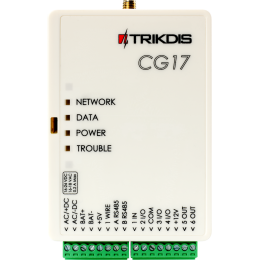
Trikdis CG17 4G GSM compact security control panel
- Manufacturer: Trikdis
- Item code: CG17-4G
- Availability: In Stock
- Warranty: 2 years
- Categories: Smart Alarm System > GSM / WiFi / Ethernet Alarm System

-
€184.90 Ex Tax: €150.33
The CG17 is a stand-alone, compact and FLEXible smart securty system. It can be both used as alarm system and as a remote control of equipment around the house, such as garage door, gate, heating, cooling, irrigation system, lighting, ventilation, etc. The integrated GSM / IP communicator allows communication in parallel to the monitoring station and the owner via the Protegus 2 Mobile and Web application.
Features
Messages to the security company
- Small and low power, self-contained alarm system and control device
- Backup power supply connection and charging option
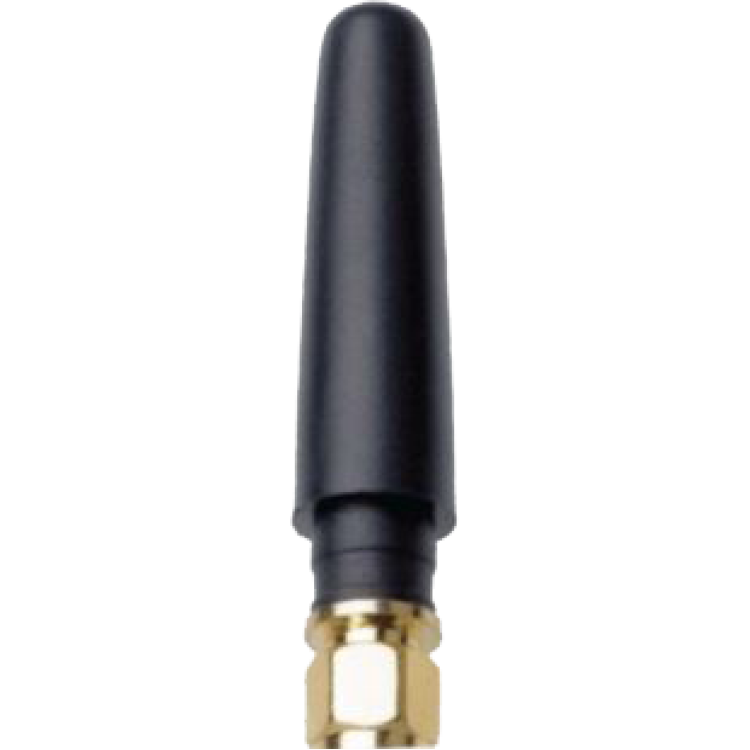
- IP-based integrated communicator operating via GSM or 4G mobile network
- RS485 port for remotely monitored sensors or other compatible devices
- Reports events in Contact ID format to Trikdis software or hardware receivers which are capable of working with any monitoring software.
- Can report events to SIA DC-09 and SUR-GUARD TL150 receivers.
- In case connection to primary channel is lost, can send to backup receiver.
- Can report events to the central monitoring station using SMS messages. Extremely useful because it works even when IP connectivity is disrupted in the mobile operator’s network.
- Cellular network jamming recognition.
- Can simultaneously report events to the security company’s receiver and work with the Protegus 2 app. Possible to set priority for sending events to central monitoring station.
Messages to users
- Calls specified phone numbers (up to 8 users) and informs about events using recorded voice messages.
- Sends SMS messages about events.
- “Push” and special sound event notifications using the Protegus 2 application.
System and output control
- Using Protegus 2 app.
- Using contact (iButton) key reader.
- By calling the device’s phone number.
- Using SMS messages.
- Using an automatic “if…then” algorithm. E.g. when an input is enabled or the temperature exceeds a certain limit, an output will be turned on.
Expander, GPS receiver and battery support
- iO series expanders, which increase the number of inputs (IN) and outputs (OUT).
- Optional Wireless expander to control or superwise equipment with no wiring installed
- Optional GPS receiver (useful for protecting ATMs and vending machines or fleet tracking).
- Optional Strela RS485 fuel level sensor
- Backup power and charging of 12 V battery.
Settings and installation
- Quick and simple installation.
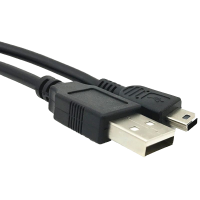
- Configuration of device either using an USB cable or remotely using TrikdisConfigsoftware.
- Remote updating of firmware.
- Two types of access levels (accounts), for the installer and for the administrator.
- Due to the Protegus 2 server, neither Fixed IP nor Dynamic DNS is required
Inputs and outputs
- 1 input, 2 outputs and 3 double I/O terminals that can be set either as input (IN) or output (OUT) terminals.
- One wire data bus (1-Wire) for connecting temperature sensors (up to 8) and a contact (iButton) key reader.
- By using an iO8 expander module, the number of inputs (IN) or outputs (OUT) can be increased to 12.
Communication
To Protegus cloud, to iOS/Android Protegus mobile apps
To 8 mobile phones via SMS messages
SMS, voice call
Compatible devices
iO Expansion Module
iO-MOD - iO-WL radio transceiver expansion modules
RF-SH radio receiver - for CROW wireless devices
E485 Ethernet module
TM17 iButton key reader
CZ-Dallas iButton key reader
T16 VHF or UHF Radio Transmitter
fuel level sensor Strela RS485
measure voltage from 0 V to 30 V
GPS receiver
Contacts (inputs and outputs)
Programming
Users
Technical data
Related Products

Related Articles

Introducing the Trikdis manufacturer
- 27/07/2018
TRIKDIS has been developing reliable alarm communicators since 1996. Their products are used in over 50 countries alongside the Protegus smart app.
Read More
CG17 alarm panel – installation and programming manual
- 30/10/2026
Installation and programming manual for the Trikdis CG17 cellular alarm panel: wiring and SIM, detectors, outputs, expanders, setup in TrikdisConfig, reporting to the monitoring station, Protegus 2, SMS commands and control by phone call.
Read MoreTags
Frequently asked questions
A Security panel or Control panel is the primary controller and supervisor of a security system.
Hopefully not. Basically, the phone should be protected from any access by using a password or pattern or fingerprint. In addition, you can use password request when you start the Protegus application and also when you want remotely control something.
Protegus 2 is the 2nd generation of Trikdis's cloud app: control your alarm system from your phone and get instant notifications. We recommend it for every current internet-connected Trikdis device. The user app is free; the paid, usage- (customer-) based tier is for monitoring stations, installers and companies.
Yes, using the TrikdisConfig programming software (via USB or remotely). The latest firmware is recommended for the best compatibility and security.
Yes: Protegus 2 can be tried on a live demo system, without installation or purchase — from a browser and from the mobile app too. This lets you see in advance what arming, notifications, and system status look like on a working alarm system.
Protegus 2 typically retains the event list for up to two months; with a large volume of events, this period may shorten to as little as one month.
Take the card out, put it in a phone, turn off every other internet source and open an article on a news site. If it loads, the card has working data — then note the APN and switch the PIN request off.
A regularly recurring problem: during installation you want to create the system in Protegus 2, but you get the message that the device is offline. In that case it is best to rule out the SIM card and the data connection first — it takes a few minutes with a phone.
Checking the SIM card with a phone
- Remove the SIM card from the device and insert it into a phone.
- Turn off every other source of internet connection so that the SIM card in question can be tested undisturbed: Wi-Fi, on a dual-SIM phone the other SIM card as well, or anything else — this way the traffic certainly goes through the card being examined.
- Turn on mobile data.
- Open a website in the browser, for example a news site, and open an article inside it too. If the article loads as well, the data connection on the card works. (A home page you opened earlier may come from the phone's cache — that is why an article must also be opened.)
If there is no internet connection, find out why: an incorrect or missing APN setting, no subscription on the card, an exhausted or expired data allowance, etc. Once that is sorted out and the connection really works, continue with step 5. - In the phone's settings check which APN belongs to this SIM card and write it down.
- Recommendation: turn off the PIN code request on the SIM card. A PIN code can of course be used and it does add security, but in devices like these we generally do not recommend it, and it is not needed for operation.
Back into the device
- Take the SIM card out of the phone and put it back into the Trikdis device.
- Using TrikdisConfig, enter the device's programming and set the APN you wrote down in the APN setting.
- Write the changes to the device, then check whether the data connection is restored — that is, whether the device is online in Protegus 2.
If it works in the phone but not in the device
The problem is almost certainly the PIN code or the APN. If the device sees the network but no connection to the server is established, check the APN first — an empty or mistyped APN is the typical symptom.
If the device picks up several networks and switches between them, it is worth setting a preferred operator. See: Setting a preferred operator – MCC and MNC codes (Europe).