

One application for all Trikdis devices


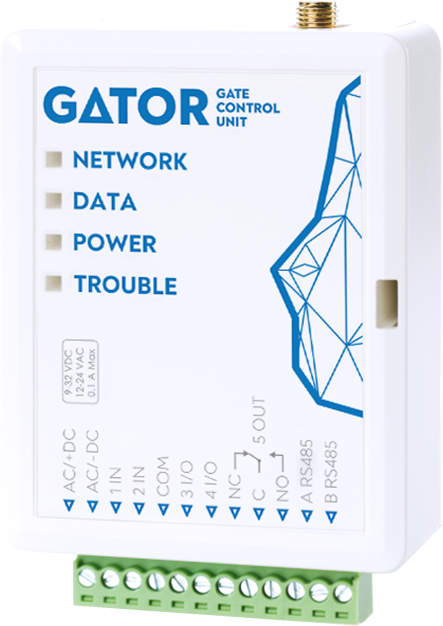
Trikdis GV17 - GATOR smart 4G GSM / IP gate controller
- Manufacturer: Trikdis
- Item code: GV17-4G
- Availability: In Stock
- Warranty: 2 years
- Categories: Gate Automation

-
€164.90 Ex Tax: €134.07
Trikdis GV17 – Installation and setup for phone call control
This video shows the installation and setup of the Trikdis GV17 gate controller for remote control via phone call.
Trikdis GV17 GSM is a gate remote control module. With GV17 it is possible to open / close a motorized gate, garage door, barrier, (magnetic) garden gate or door with a free smartphone application. In addition to the above, it can also be used in parallel with the traditional phone call method.
Control options
- From a free application (unlimited user, with revocable rights)
- Phone call
- Only those on the whitelist
- Anyone who knows the phone number
- Blacklist option (list of excluded users)
- SMS message
Main features
- Free Protegus 2 Mobile (Android and Ios, Iphone) and Web application (from any browser)
- Simple, quick installation (no router settings, no Fixed IP or Dynamic DNS required due to the Protegus 2 server)
- 4G LTE GSM and data connection (works with 3G and 2G network also)
- Event logging (opening, closing time, user)
- Contacts:
- 1 x 1 A 30 V DC, 0.5 A 125 V AC, customizable relay with switching (pull-in) time
- 2 x FLEXible contacts, which can be both input and output (e.g. next to the garage, gate and pedestrian gate, or barrier 2-3, etc.)
- 2 x inputs (zone), e.g. for tamper or door / gate state (check if closed)
- Connection and communication are encrypted (AES-128)
For installers
- 4 types of programming options:
- locally with programming software via USB
- remotely with programming software
- remotely from Protegus 2
- via SMS
- Settings Import and export option with user list included
- 2 access level to configure and control the module: Administrator, Installer
- RFID reader (Wiegand )
- RS485 port for remotely monitored sensors or other compatible devices
- 7 administrators and 1000 with username and phone number, email address (for the Protegus 2 system)
- Event log with 5,000 entries, easy copying (e.g. to Excel)
Thanks to its above dimensions, not only family house, condominium or office, but office building, no it can be used without compromises in the case of a residence or even an industrial estate.
Special use case
This device can be installed as an access control system and / or a work hour system. Click here to read more.
Ethernet or Wi-Fi expansion – W485 and E485
 Trikdis E485 Ethernet module (RS485)
 Trikdis W485 Wifi module (RS485)
This device can be extended with a W485 (Wi-Fi) or E485 (Ethernet) module: events reach the monitoring station and the Protegus2 app over wired internet or Wi-Fi.
- Connection: over the RS485 bus; the communicator supplies the power (9–28 V DC), no separate power supply needed.
- The internet is the primary channel: while it is up, everything goes through it. If it drops, the device switches to the mobile network on its own, and returns to IP as soon as the internet is back.
- More than event reporting: the Protegus2 app (notifications, remote control) also works over this channel.
- E485 – wired Ethernet (RJ45).
- W485 – Wi-Fi 2.4 GHz (WPA/WPA2), for places with no UTP cable pulled.
- If required, it can be used even without a SIM card.
- Setup: with the TrikdisConfig software over USB.
Communication
SMS
Customer
Compatible devices
E485 Ethernet module
Wiegand keypad and RFID reader
Paradox K32LCD+, K32+, K32LED, K32+ LED, K35, K10H, K10V, K636, TM50*, TM70*
Crow CR16, CR-LCD
LED keypads display the status of the first 2 areas only, but can control all 8 areas.
*This keypad can only arm/disarm the first 2 areas.
Contacts (inputs and outputs)
Programming
Users
Technical data
Related Products


Related Articles

Protegus Android / Iphone and web app
- 27/01/2018
The free Protegus mobile and web app lets you remotely manage your alarm system – compatible with any manufacturer.
Read More
New to Trikdis? A Quick Introduction to the Products
- 28/08/2019
Quick overview of the Trikdis product family: communicators, alarm control panels, gate controllers and Protegus 2.
Read More
The GV17 Gate Automation Device Works with Protegus 2
- 01/06/2022
Protegus 2 is the new universal app for Trikdis devices, now supporting the GV17 gate opener as well.
Read More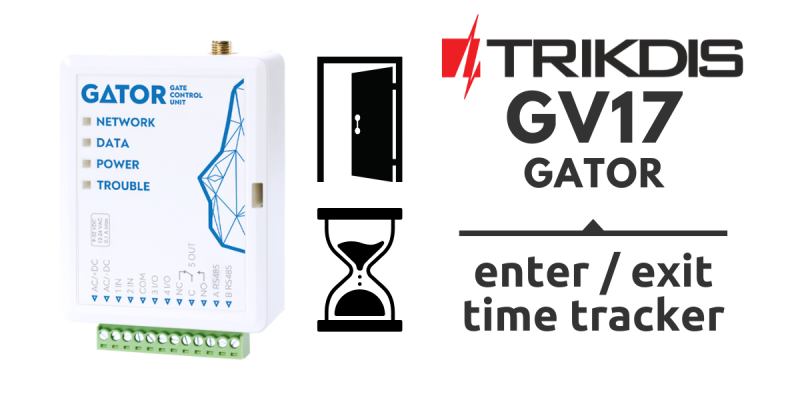
GV17 – Entry Control and/or Employee Time Tracking System
- 10/02/2023
The GV17 gate controller and Protegus 2 app form an entry control and employee time tracking system.
Read More
Dual Path Communication Now Available for the GV17 GATOR Gate Controller
- 05/11/2025
The Trikdis GV17 GATOR SIM-based gate controller now supports dual path communication: WiFi/Ethernet as the primary channel with automatic GSM failover.
Read More
Flexible Wireless Access Control with the GATOR RF-LoRa System
- 05/05/2026
The GATOR SIM and WiFi controller with RF-LoRa expansion enables a fully wireless access control system for up to 8 doors, managed via the Protegus 2 app.
Read MoreTags
Frequently asked questions
Protegus 2 is the 2nd generation of Trikdis's cloud app: control your alarm system from your phone and get instant notifications. We recommend it for every current internet-connected Trikdis device. The user app is free; the paid, usage- (customer-) based tier is for monitoring stations, installers and companies.
Two parallel communication channels (e.g. Ethernet + 4G): if one drops, the other automatically takes over signalling. This gives the highest reliability, which standards may even require (a higher Grade rating). The GET and FLEXi SP3 work this way. An add-on module also exists for existing communicators, in WiFi (W485) and Ethernet (E485) versions.
Yes, using the TrikdisConfig programming software (via USB or remotely). The latest firmware is recommended for the best compatibility and security.
With the GV17 GATOR you can open and close a motorised gate, garage door, barrier, or magnetic-lock garden gate from the free Protegus 2 app — with up to 1000 users and revocable permissions — or with a traditional phone call.
Yes. With the GV17's call-based control, it identifies and opens based on the caller's number without answering the call — so the call is free. You can set it so only numbers on the list can open it, or anyone who knows the number; you can also block numbers with a blacklist.
Yes. GV17 events are logged, so it can also be used as a simple access control system; for wireless access control, the GATOR RF-LoRa accessory provides a flexible solution. Time tracking is a separate feature with different functionality — our knowledge base provides detailed guidance.
Yes: Protegus 2 can be tried on a live demo system, without installation or purchase — from a browser and from the mobile app too. This lets you see in advance what arming, notifications, and system status look like on a working alarm system.
Protegus 2 typically retains the event list for up to two months; with a large volume of events, this period may shorten to as little as one month.
Take the card out, put it in a phone, turn off every other internet source and open an article on a news site. If it loads, the card has working data — then note the APN and switch the PIN request off.
A regularly recurring problem: during installation you want to create the system in Protegus 2, but you get the message that the device is offline. In that case it is best to rule out the SIM card and the data connection first — it takes a few minutes with a phone.
Checking the SIM card with a phone
- Remove the SIM card from the device and insert it into a phone.
- Turn off every other source of internet connection so that the SIM card in question can be tested undisturbed: Wi-Fi, on a dual-SIM phone the other SIM card as well, or anything else — this way the traffic certainly goes through the card being examined.
- Turn on mobile data.
- Open a website in the browser, for example a news site, and open an article inside it too. If the article loads as well, the data connection on the card works. (A home page you opened earlier may come from the phone's cache — that is why an article must also be opened.)
If there is no internet connection, find out why: an incorrect or missing APN setting, no subscription on the card, an exhausted or expired data allowance, etc. Once that is sorted out and the connection really works, continue with step 5. - In the phone's settings check which APN belongs to this SIM card and write it down.
- Recommendation: turn off the PIN code request on the SIM card. A PIN code can of course be used and it does add security, but in devices like these we generally do not recommend it, and it is not needed for operation.
Back into the device
- Take the SIM card out of the phone and put it back into the Trikdis device.
- Using TrikdisConfig, enter the device's programming and set the APN you wrote down in the APN setting.
- Write the changes to the device, then check whether the data connection is restored — that is, whether the device is online in Protegus 2.
If it works in the phone but not in the device
The problem is almost certainly the PIN code or the APN. If the device sees the network but no connection to the server is established, check the APN first — an empty or mistyped APN is the typical symptom.
If the device picks up several networks and switches between them, it is worth setting a preferred operator. See: Setting a preferred operator – MCC and MNC codes (Europe).